Stockity for PC
Access Stockity on your PC with ease — via browser or quick setup for Windows & Mac. Here’s how to get started and optimize your experience.

Stockity Desktop Platform Overview
Web-Based Trading Architecture
Unlike traditional brokers offering MetaTrader 4/5 or proprietary desktop applications, Stockity operates exclusively through web browser technology. The platform utilizes modern HTML5 and JavaScript frameworks to deliver real-time trading functionality without requiring separate software downloads. This browser-based approach ensures universal compatibility across Windows, Mac, and Linux operating systems.
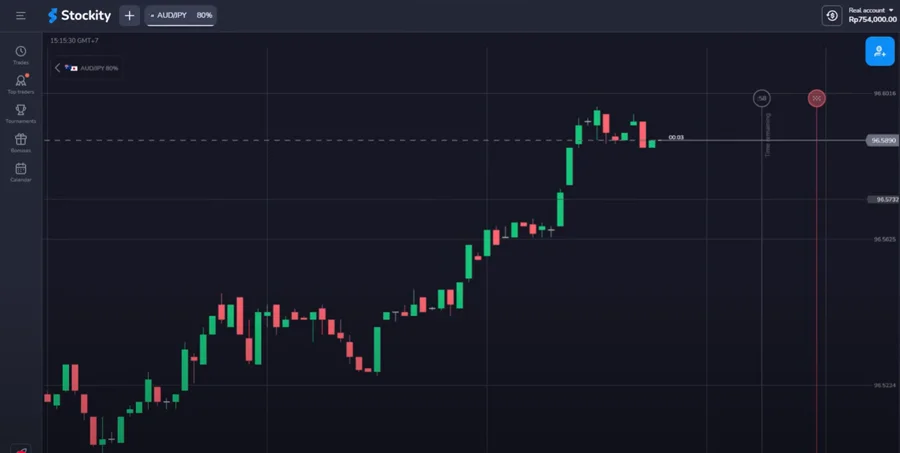
The web terminal provides identical functionality to mobile applications while leveraging larger screen real estate for enhanced analysis capabilities. Traders access over 70 trading instruments, comprehensive charting tools, and account management features through any modern web browser. Chrome, Firefox, Safari, and Edge all support the platform’s full feature set.
Browser-based trading eliminates software installation complexities, automatic updates, and compatibility issues common with traditional trading platforms. The system works immediately after account registration, requiring only stable internet connectivity and a supported web browser.
System Requirements and Compatibility
| Component | Minimum Requirement | Recommended Specification |
| Operating System | Windows 7+ / macOS 10.12+ | Windows 10+ / macOS 12+ |
| Browser | Chrome 70+ / Firefox 65+ | Chrome 100+ / Firefox 95+ |
| RAM | 4 GB | 8 GB or higher |
| Internet Speed | 1 Mbps | 5+ Mbps |
| Screen Resolution | 1024×768 | 1920×1080 or higher |
| JavaScript | Enabled | Enabled with hardware acceleration |
Progressive Web App (PWA) Installation
Progressive Web Apps represent a hybrid approach between traditional websites and native applications. Stockity’s PWA version provides app-like functionality while maintaining web-based flexibility. PWA installation creates desktop shortcuts and enables offline functionality for certain platform features.
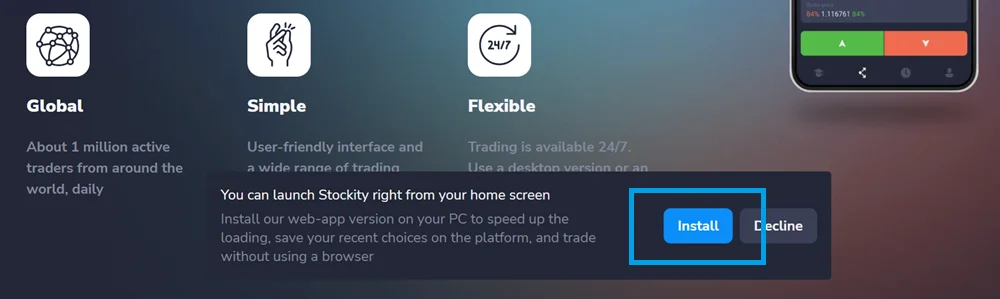
To install the Stockity web app on your desktop, simply visit the official website and scroll down slightly until a pop-up appears — just like the example below. It will prompt you to add the trading platform as a desktop app. Once installed, you can launch it directly from a shortcut, without opening your browser.
If the prompt doesn’t show up, don’t worry — you can install it manually through your browser settings.
For Windows Installation Process
Windows 10 and 11 provide native PWA support through Microsoft Edge and Chrome browsers. The installation process creates a desktop app that launches independently of the main browser window.
- Navigate to Stockity platform using Chrome browser
- Log into your trading account to verify functionality
- Click the three-dot menu in Chrome’s top-right corner
- Select “Install Stockity” from the dropdown menu
- Confirm installation in the popup dialog box
- Wait for desktop shortcut and Start menu entry creation
- Launch the PWA app from desktop or Start menu
For macOS Installation Guide
Mac users can install Stockity’s PWA through Safari or Chrome browsers with slightly different procedures. Safari provides the most integrated experience with macOS system features.
- Open Safari and navigate to Stockity trading platform
- Log into account and verify all features load correctly
- Click “File” in Safari’s menu bar
- Select “Add to Dock” or use keyboard shortcut ⌘+Shift+A
- Choose application name and icon for Dock placement
- Verify installation by checking Applications folder
- Launch PWA directly from Dock or Applications folder
Alternative Access Methods
Android Emulator Installation
Android emulators provide access to Stockity’s mobile application on PC systems, offering an alternative interface with different functionality emphasis. This method appeals to traders familiar with mobile app interfaces who prefer larger screens.
| Emulator | System Requirements | Installation Size | Performance Rating |
| BlueStacks | 4GB RAM, Windows 7+ | 5GB | Excellent |
| NoxPlayer | 3GB RAM, Windows/Mac | 3GB | Very Good |
| LDPlayer | 2GB RAM, Windows | 2GB | Good |
| MEmu | 4GB RAM, Windows | 4GB | Very Good |
BlueStacks Installation Process:
- Download BlueStacks installer from official website
- Run installer with administrator privileges on Windows
- Complete setup wizard and Google account configuration
- Access Google Play Store within emulator environment
- Search for Stockity mobile application
- Install app following standard Android procedures
- Log into trading account
Emulator performance depends heavily on PC specifications and may require graphics driver updates for optimal operation. Modern processors with virtualization support provide the best emulator experience.
Stockity’s PC trading capabilities center around its robust web-based platform that eliminates traditional software installation complexities while delivering comprehensive trading functionality. The browser-based approach ensures universal compatibility across Windows and Mac systems with automatic updates and consistent performance.
Success with Stockity PC trading depends more on proper browser configuration and system optimization than the specific access method chosen, making the platform accessible to traders regardless of their technical expertise or hardware preferences.
Frequently Asked Questions
Is there a downloadable desktop app for Stockity?
No, Stockity does not offer a traditional downloadable desktop application like an .exe or .dmg file. The platform operates exclusively through web browsers, providing cross-platform compatibility without software installation requirements. However, you can install the Progressive Web App (PWA) version that functions similarly to a desktop application.
Can I trade Stockity on Windows and Mac computers?
Yes, Stockity’s web-based platform works on both Windows and Mac operating systems through any modern web browser. The platform automatically adapts to your screen size and operating system, providing identical functionality across different computers. System requirements are minimal, requiring only a recent browser version and stable internet connection.
How do I install the PWA version of Stockity on my computer?
PWA installation varies by browser and operating system. In Chrome, navigate to the Stockity platform, click the three-dot menu, and select “Install Stockity.” Edge users can access the same feature through “Apps” > “Install this site as an app.” Safari users on Mac can click “File” > “Add to Dock.” The PWA creates a desktop shortcut and functions like a native application.
What should I do if I can't access the Stockity website?
First, verify your internet connection by testing other websites. Clear your browser cache and cookies, disable extensions temporarily, and try accessing the platform through a different browser. If problems persist, check if your firewall or antivirus software is blocking the site. Geographic restrictions may also prevent access from certain locations.
Can I use Android emulators to run Stockity on my PC?
Yes, Android emulators like BlueStacks, NoxPlayer, or MEmu allow you to run the Stockity mobile app on your PC. This provides access to the mobile interface on a larger screen. However, the web platform typically offers better functionality for desktop trading, while emulators consume more system resources and may introduce additional complexity.
Does Stockity work with multiple monitors for advanced trading setups?
Yes, the web-based platform works excellently with multiple monitor configurations. You can open different browser windows or tabs across multiple screens for simultaneous chart analysis, account monitoring, and market research. This setup provides professional trading capabilities comparable to dedicated desktop applications.
Sign Up and Get a Welcome Bonus
Sign up now and get a bonus on your first deposit! Any doubts? Then just test the platform on a free demo account.
* Risk Warning: Online trading may involve significant financial risks including the risk of losing all funds on your trading account. Please, estimate all the risks and get advice from an independent financial advisor before using Stockity services. We also recommend not to invest funds you can’t afford.